
Subtotal: $7.00
tips
Step-by-step configuration: Active Directory-based activation
-53%

Original price was: $15.00.$7.00Current price is: $7.00.
-46%

Original price was: $13.00.$7.00Current price is: $7.00.
-51%

Original price was: $9.00.$4.40Current price is: $4.40.
-55%

Original price was: $13.00.$5.80Current price is: $5.80.
-62%

Original price was: $13.00.$5.00Current price is: $5.00.
-49%

Price range: $4.60 through $5.00

-54%

Price range: $5.80 through $6.00
Applies to:✅ Windows 11, ✅ Windows 10, ✅ Windows Server 2022, ✅ Windows Server 2019, ✅ Windows Server 2016, ✅ Microsoft Office
To configure Active Directory-based activation on a supported version of Windows Server, complete the following steps:
- Use an account with Domain Administrator and Enterprise Administrator credentials to sign in to a domain controller.
- Launch Server Manager.
- Add the Volume Activation Services role, as shown in Figure 11.
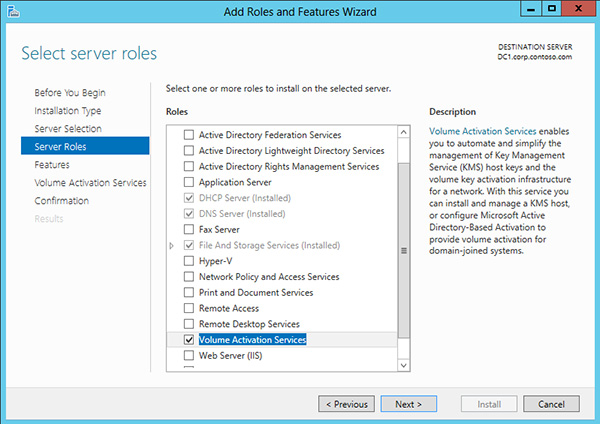
Figure 11. Adding the Volume Activation Services role
- Select the Volume Activation Tools, as shown in Figure 12.
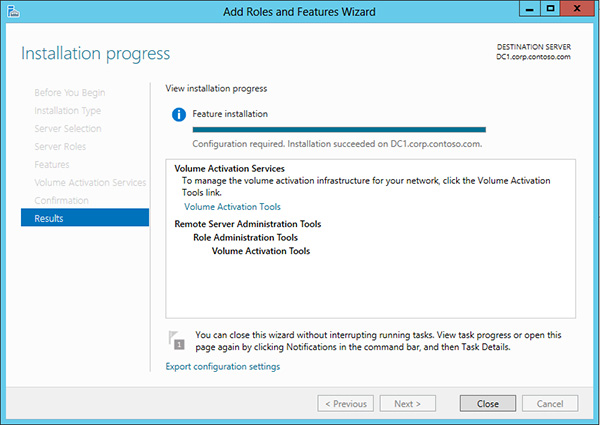
Figure 12. Launching the Volume Activation Tools
- Select the Active Directory-Based Activation option, as shown in Figure 13.
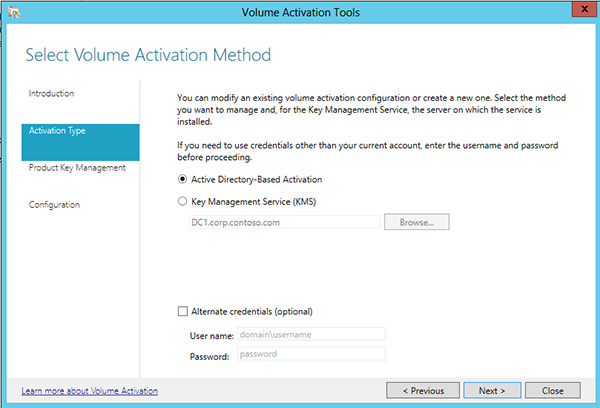
Figure 13. Selecting Active Directory-Based Activation
- Enter the organization’s KMS host key and optionally specify a display name, as shown in Figure 14.
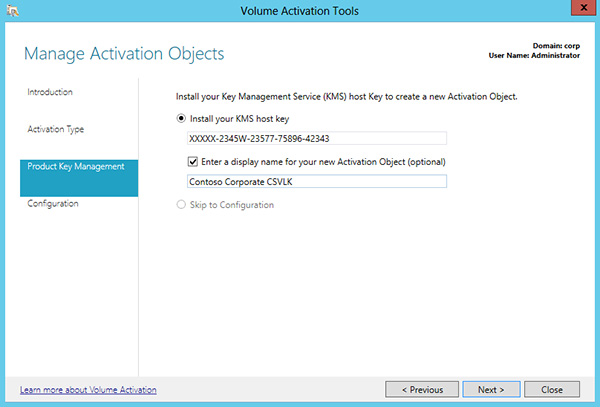
Figure 14. Entering the organization’s KMS host key
- Activate the organization’s KMS host key by phone or online, as shown in Figure 15.
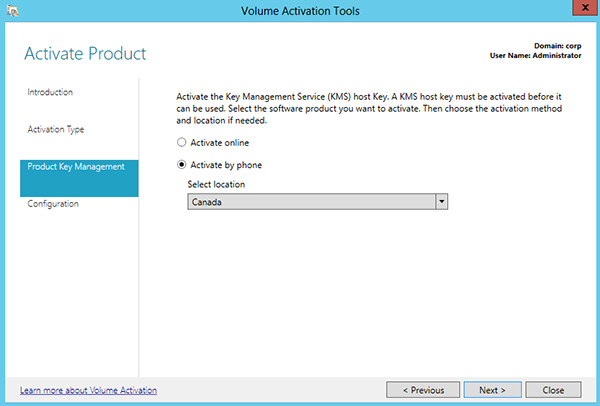
Figure 15. Choosing how to activate the product
- After activating the key, select Commit, and then select Close.
Verifying the configuration of Active Directory-based activation
To verify the Active Directory-based activation configuration, complete the following steps:
- After configuring Active Directory-based activation, start a computer running an edition of Windows configured by volume licensing.
- If the computer was previously configured with a MAK key, replace the MAK key with the GVLK. Run the
slmgr.vbs /ipkcommand and specifying the GVLK as the new product key. - If the computer isn’t joined to the organization’s domain, join it to the domain.
- Sign in to the computer.
- Open Windows Explorer, right-click Computer, and then select Properties.
- Scroll down to the Windows activation section, and verify that this client is activated.